Skip to content
Transcribe

Video to text without uploading the video

Pick a video and OmniaScribe writes down what is said in it, right on your device.

  • Nothing uploaded
  • No sign-up
  • Free
or drop it here · MP3 WAV M4A MP4 MKV MOV FLAC OGG
Nothing is uploaded
How it works

Three steps, all on your device

  1. Pick a video file

    MP4, MOV, MKV or WebM from your phone, camera, screen recorder or a download. Only its sound track is decoded.

  2. The speech becomes text

    The Local AI engine transcribes the sound track on your device and shows each line as soon as it is done.

  3. Use the text anywhere

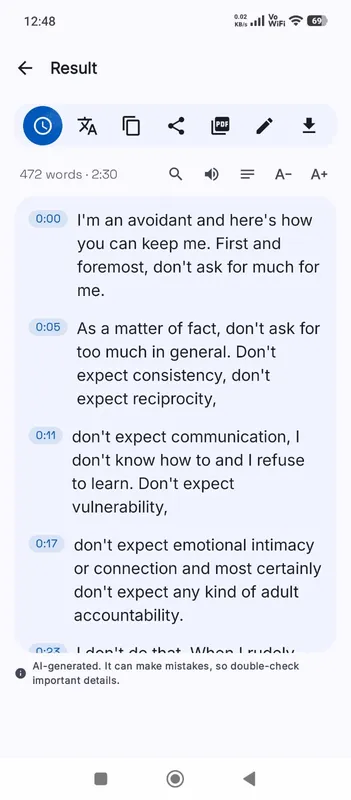
    Copy it, search it, save it as a document, or export SRT and VTT subtitles timed to the video.

Why it works

Why OmniaScribe

  • Your footage stays private

    Unreleased videos, client calls and family clips never leave your computer or phone.

  • Only the sound is read

    The picture is never analysed, so a large video file is no harder than its audio.

  • Subtitles included

    The same transcript exports as SRT or VTT subtitles with start and end times.

  • Jump to any moment

    Click a line to hear that part of the soundtrack again while you check the text.

Why transcribe a video?

A transcript makes a video searchable and easy to reuse. Creators turn talks and tutorials into articles and show notes. Researchers and journalists quote recorded interviews word for word. Teams keep a written record of recorded demos and training sessions. Students revise from a recorded lecture without scrubbing through the timeline. And captions help everyone who watches with the sound off, or who is deaf or hard of hearing.

A transcript also makes a long recording easy to search. An hour of video is hard to skim, but its text can be searched in seconds: type a word, every line that contains it is highlighted, and clicking a line plays the moment it was said. That alone makes webinars, screen recordings and recorded calls far easier to work with.

What OmniaScribe does with a video file

A video file holds the picture and the sound as separate tracks. OmniaScribe opens the file in your browser, decodes only the sound track, turns it into the format the speech model expects and transcribes it. The picture is never analysed and the file is never uploaded.

When the transcript is done, it is saved in History on this device along with the file, so you can play the sound back line by line. If your browser storage is full, the transcript is kept without the player.

Getting the best results from video

Screen recordings made with a headset, talking-head videos and presentations usually transcribe very well. Footage filmed far from the speaker, in wind or with loud background music is harder. If the speech is not in English, choose its language in the Spoken language list rather than relying on auto-detect, especially when the video opens with music or an intro. Long silent stretches still take processing time, so trimming them first makes the job quicker.

From transcript to subtitles

Every line of the transcript keeps its start and end time. Export SRT or VTT and the lines become short subtitle cues you can load into YouTube, a video editor or a player. To get English subtitles for a video in another language, tick Translate to English before you start. If you need the words burned into the picture, Viditool, our sister site, can do that with the same file.

Phones and long videos

Transcribing uses your device’s own processor, so a phone works more slowly than a laptop and accepts half the length. For long videos on a phone, pick the Fast model, or use our Android app, which keeps working in the background while you use your phone.
Specs

Formats and limits

Audio
MP3, WAV, M4A, AAC, FLAC, OGG, OPUS
Video
MP4, MOV, MKV, WEBM
Export
TXT, PDF, DOCX, SRT, VTT
Languages
99, or detect automatically
Longest file per model
ModelComputerPhone
Fast3 h1 h 30 min
Standard2 h1 h
High accuracy1 h30 min

Files that would take more than about 45 min on your device ask before they start.

FAQ

Questions, answered.

Something else on your mind? Email us and a person replies.

Is my video uploaded?

No. The video is opened and transcribed in your browser. Nothing is sent to a server; only the speech model is downloaded, once.

Which video formats are supported?

MP4, MOV, MKV and WEBM, as long as your browser can decode the sound track. Most videos use AAC or Opus sound, which every modern browser can decode.

Does it read text shown on screen?

No. Only spoken words in the sound track are transcribed. Slides, on-screen text and captions burned into the picture are not read.

Can I get subtitles from my video?

Yes. On the result, export SRT or VTT. Or start from the subtitle generator, which offers the SRT file first.

How long can the video be?

On a computer, Fast handles up to 3 h, Standard handles up to 2 h, High accuracy handles up to 1 h. On phones it's half of that. The length of the sound track is what counts.

Can I paste a YouTube link?

No. OmniaScribe has no server, so it can't fetch videos from other websites. Transcribe a video file that is on your device.

Can I translate a video into English?

Yes, with a multilingual model: tick Translate to English before you start and the transcript is written in English. Translating into other languages uses your browser’s built-in translator, available in Chrome on a computer.

Guides

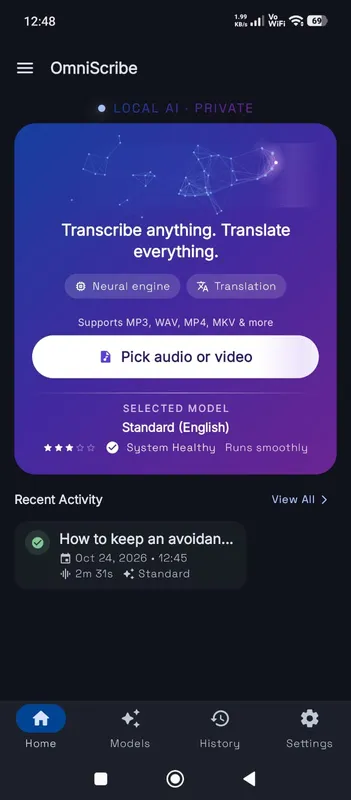
OmniScribe for Android

Transcribe anywhere.
No signal needed.

Install the free Android app and turn recordings into text on your phone, even with the screen off. Your audio never leaves the phone.

  • Works offline after a one-time model download
  • Translates offline, too
Get it on Google Playfree with ads · optional Pro
The OmniScribe home screen