Where M4A files come from
M4A is the audio-only version of the MP4 container. It is what Apple’s Voice Memos saves, what many Android recorder apps use, and what you get when you export audio from GarageBand, QuickTime or a video call app. The sound inside is almost always AAC, a compressed format every modern browser can decode, so M4A files open quickly and are about the size of an MP3 of the same quality.
Moving the file from your phone
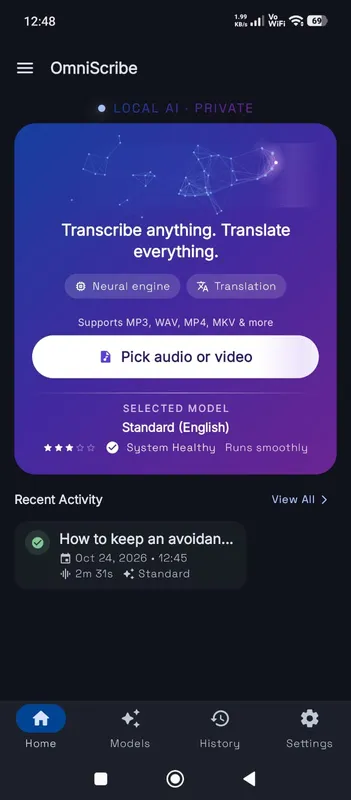
You can transcribe right on the phone: open OmniaScribe in your phone’s browser and pick the recording from Files or your recorder’s shared folder. On a laptop, transcription is faster and the length limit is twice as long, so for longer recordings it is worth moving the file across. AirDrop, a USB cable, or emailing the file to yourself all work. The file is only read from wherever it ends up; it is not uploaded by us.
On an iPhone, open Voice Memos, tap the recording, choose Share and save it to Files. On Android, most recorder apps have a share button that can save the M4A to your Downloads folder.
Lossless M4A
Some apps save M4A with Apple Lossless (ALAC) sound instead of AAC. These files are larger and not every browser can decode ALAC. If a lossless M4A refuses to open, export it again as AAC or convert it to WAV, which every browser reads. Most phone recordings use AAC and never have this problem.
Getting a cleaner transcript
Phone recordings vary a lot. A memo spoken straight into the phone is usually transcribed very well. A recording left on a table in a meeting room picks up echo and distant voices, so expect more mistakes there and consider the Standard or High accuracy model. If the recording mixes languages, choose the main language; the engine follows one language per file.
After the transcript is done
The result shows each line with its time. Click any line to hear it again from the M4A, use search to find a word, and turn timestamps off when you want plain text for an email or a document. Every transcript is kept in History on this browser until you delete it.
If you record often, it helps to give each M4A a clear name before you transcribe it, such as the date and topic. The file name becomes the transcript’s title in History, so a month from now you can find “2026-10 dentist call” far faster than “New Recording 47”.