Skip to content
Subtitles

Subtitle generator: SRT files made on your device

Turn the speech in a video into timed SRT subtitles you can edit and download, without uploading anything.

  • Nothing uploaded
  • No sign-up
  • Free
or drop it here · MP3 WAV M4A MP4 MKV MOV FLAC OGG
Nothing is uploaded
How it works

Three steps, all on your device

  1. Pick the video

    Pick or drop the video, or just its audio. Set the spoken language if you know it.

  2. Check the lines

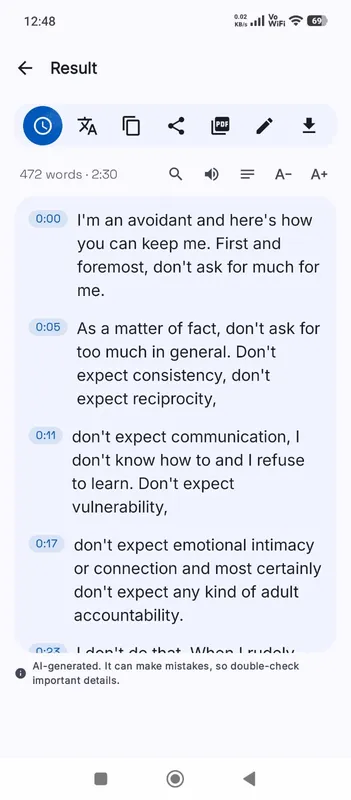
    When the transcript opens, play any line to check it and fix words with Edit. Each line keeps its timing.

  3. Download the SRT

    The SRT button is highlighted on the result. VTT is right next to it for web players.

Why it works

Why OmniaScribe

  • Timed from the speech

    Every cue gets a start and end time from the audio, and cues never overlap.

  • Edit before you export

    Fix names, numbers and punctuation in the transcript, and the subtitles follow.

  • Any language, or English

    Subtitles in the language spoken (99 to choose from), or translated to English as it transcribes.

  • Private footage stays private

    The video is processed in your browser and never uploaded.

SRT or VTT?

SRT (SubRip) is the most widely accepted subtitle format. YouTube, Vimeo, most video editors and players such as VLC read it. It is a plain text file with a number, a time range and the text for each cue. VTT (WebVTT) is the format web players use with the HTML track element; it looks similar but starts with a header and writes times with a dot instead of a comma. If you are not sure, download SRT, and switch to VTT when a web player asks for it.

How the cues are made

OmniaScribe first writes a timed transcript, where each line knows when its speech starts and ends. When you export subtitles, long lines are split into short one-line cues that are comfortable to read, and the line’s time is shared out by length, so each cue stays on screen in step with the speech. Cues never overlap. The file is plain text: nothing in the transcript is turned into formatting.

Check your subtitles before you publish

Automatic subtitles are a fast first draft, not a finished product. Before you publish, play through the result and look for names, brand terms and numbers, which speech models get wrong most often. Search for each repeated mistake and fix it everywhere. Editing changes the words only, so the timing stays matched to the speech.

Reading speed matters too. Viewers need time to read each cue, so very fast speech gives cues that flash by. If a part feels rushed, shorten the wording with Edit: fewer words in the same time are easier to follow, and the meaning usually survives. Turn on timestamps in the result to see where each line starts.

Subtitles in another language

If the video is in another language and you want English subtitles, tick Translate to English before you pick the file; it needs a multilingual model. The engine then writes English text straight from the speech, timed the same way. For subtitles in a language other than English, transcribe first, then use Translate on the result. In Chrome on a computer, the browser’s own translator makes a translated copy with the same timestamps, which you can export as SRT too.

Burning subtitles into the video

An SRT file travels next to the video, and viewers switch it on or off. If the words need to be part of the picture, for example in social clips that autoplay without sound, load the SRT into your video editor, or use Viditool, our sister site, to burn them in.
Specs

Formats and limits

Audio
MP3, WAV, M4A, AAC, FLAC, OGG, OPUS
Video
MP4, MOV, MKV, WEBM
Export
TXT, PDF, DOCX, SRT, VTT
Languages
99, or detect automatically
Longest file per model
ModelComputerPhone
Fast3 h1 h 30 min
Standard2 h1 h
High accuracy1 h30 min

Files that would take more than about 45 min on your device ask before they start.

FAQ

Questions, answered.

Something else on your mind? Email us and a person replies.

Is the subtitle generator free?

Yes. There's no sign-up, no watermark and no per-minute charge.

Is my video uploaded?

No. The sound track is decoded and transcribed in your browser, on your device. Nothing is sent to a server.

Which subtitle formats can I download?

SRT and VTT. The same transcript can also be saved as TXT, PDF and DOCX.

Can I edit the subtitles before I download them?

Yes. Use Edit on the result to fix any line. The timing of each line stays the same, and the exported file uses your corrected text.

Will the subtitles work on YouTube?

Yes. In YouTube Studio, open the video’s Subtitles, choose to upload a file with timing, and pick the SRT file.

Can I make English subtitles for a video in another language?

Yes. Tick Translate to English before you start (it needs a multilingual model), and the subtitles come out in English.

How long can the video be?

On a computer, Fast handles up to 3 h, Standard handles up to 2 h, High accuracy handles up to 1 h. On phones it's half of that. Split longer videos into parts.

Guides

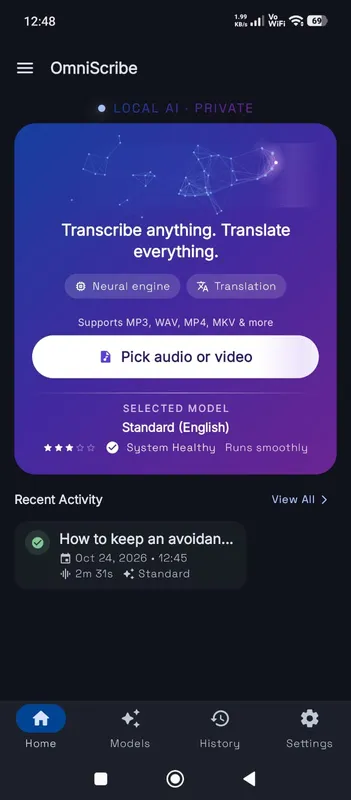
OmniScribe for Android

Transcribe anywhere.
No signal needed.

Install the free Android app and turn recordings into text on your phone, even with the screen off. Your audio never leaves the phone.

  • Works offline after a one-time model download
  • Translates offline, too
Get it on Google Playfree with ads · optional Pro
The OmniScribe home screen