Skip to content
Use cases

Transcribe a lecture into notes you can search

Turn a recorded class into timed, searchable text you can revise from, on your own laptop or phone.

  • Nothing uploaded
  • No sign-up
  • Free
or drop it here · MP3 WAV M4A MP4 MKV MOV FLAC OGG
Nothing is uploaded
How it works

Three steps, all on your device

  1. Pick the lecture recording

    The audio you recorded in class, or a lecture video your course shared. Choose the language it was taught in.

  2. Transcribe on your device

    The Local AI engine writes the lecture down line by line. Long lectures take a while, so start it before a break.

  3. Revise from the text

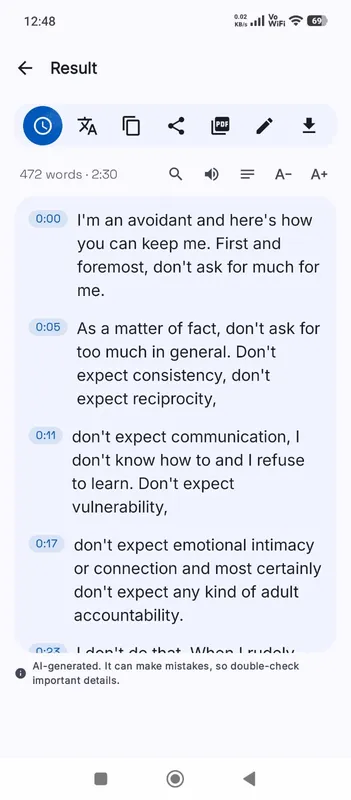
    Search for a term, click the line to hear the explanation again, and export your notes as DOCX or PDF.

Why it works

Why OmniaScribe

  • Free for students

    No credits run out at exam time. Transcribe every lecture of the term.

  • Jump to the explanation

    Each line is timed, so one click replays exactly the part you missed.

  • Works on campus Wi-Fi, or none

    After the first model download, transcribing needs no connection.

Revising from a transcript

A lecture moves faster than anyone can write. With a transcript you can listen properly in class and catch the details later. Search the text for the term the lecturer kept returning to, read the definition as it was given, and click the line to hear the tone and the example that went with it. Many students paste the transcript into their own notes and cut it down to the parts that matter, which is a useful revision exercise in itself.

Recording the lecture well

Ask permission first: many universities allow recording for personal study, but rules differ by course and country. Sit near the front, because the lecturer’s voice drops quickly with distance and the room adds echo. If the lecture uses a microphone and speakers, sitting near a speaker helps. Put the phone on a jumper or notebook, not straight on the desk, so typing and knocks do not drown out the voice.

Questions from the audience are often far from the recorder and come out quieter. Expect those lines to be less accurate than the lecturer’s.

Choosing a model for long lectures

A ninety-minute lecture is a long file. On a laptop, Standard is a good balance and High accuracy is worth it for technical subjects with many terms. On a phone, the length limit is half as long and processing is slower, so Fast or Standard is the practical choice. The workspace checks the length before it starts and warns you if it will take a long time.

Technical terms and formulas

Speech models know common academic vocabulary but stumble on rare names, abbreviations and formulas read aloud. After the transcript is done, search for terms you know were used and correct them with Edit. Spoken maths comes out as words, such as “x squared plus two”, which you can rewrite in your notes. OmniaScribe does not read slides, so pair the transcript with the course slides for diagrams and equations.

Lectures in another language

International students can transcribe a lecture in the language it was given and also read it in English: tick Translate to English before starting, with a multilingual model. Translation works better with Standard or High accuracy than with Fast.

A good routine is to transcribe twice: once in the original language, to learn the subject’s vocabulary as it is used, and once in English, to check you understood the argument. Both are saved in History, so you can compare them line by line before an exam.
Specs

Formats and limits

Audio
MP3, WAV, M4A, AAC, FLAC, OGG, OPUS
Video
MP4, MOV, MKV, WEBM
Export
TXT, PDF, DOCX, SRT, VTT
Languages
99, or detect automatically
Longest file per model
ModelComputerPhone
Fast3 h1 h 30 min
Standard2 h1 h
High accuracy1 h30 min

Files that would take more than about 45 min on your device ask before they start.

FAQ

Questions, answered.

Something else on your mind? Email us and a person replies.

Is it really free for students?

Yes. There is no account, no trial and no limit on how many lectures you transcribe.

How long can a lecture be?

On a computer, Fast handles up to 3 h, Standard handles up to 2 h, High accuracy handles up to 1 h. On phones it's half of that. Most lectures fit on a laptop.

Is my lecture recording uploaded?

No. It is transcribed on your own device and saved only in this browser’s History.

Can it transcribe a lecture video from my course page?

Yes, if you can download the video file. It cannot fetch videos from a link.

Does it read the slides?

No. Only speech is transcribed. Keep the slides next to your transcript.

Can I translate a lecture into English?

Yes. Tick Translate to English before you start, with a multilingual model. Standard or High accuracy give better translations than Fast.

Guides

OmniScribe for Android

Transcribe anywhere.
No signal needed.

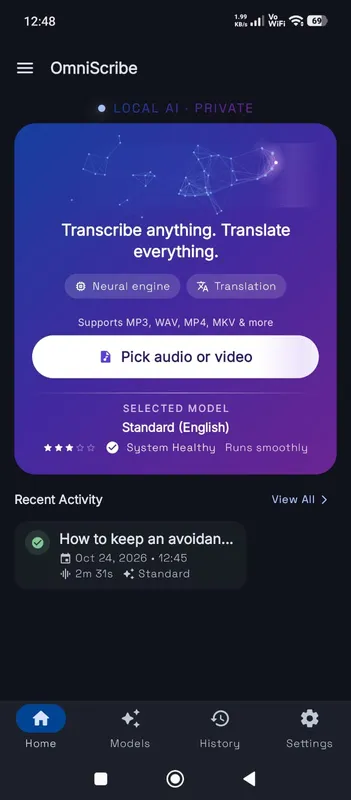
Install the free Android app and turn recordings into text on your phone, even with the screen off. Your audio never leaves the phone.

  • Works offline after a one-time model download
  • Translates offline, too
Get it on Google Playfree with ads · optional Pro
The OmniScribe home screen